Goals & Strategies is a feature that is designed to assist you in developing, tracking, and achieving different milestones. As a student, you are able to track Academic, Career, and Personal Goals. Setting up your goals is the first step. This feature is located within the Build Career Plan tab under Goals & Strategies.
How to add goals: 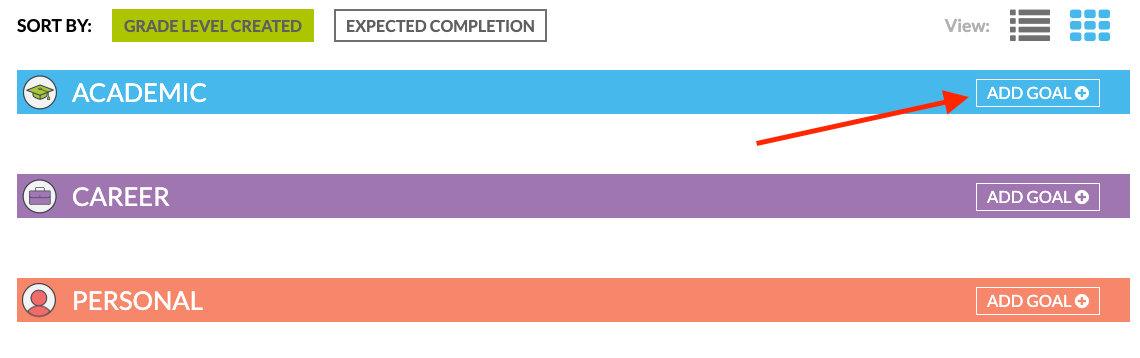
- To add a goal you will click on "Add Goal" next to the category you wish to select. This will open the window below to create your goal.
- When adding a goal you will first make sure you have the correct goal type. This can be changed by selecting the correct radio button
- Add in the Goal Name or Description.
- Add Strategies to complete your goal
-
- Here you will be able to add as many strategies as you would like. These are good ways to track progress towards completing your goal.
- You are able to add up to 5 Strategies towards completing your goals.
-
- Add your Expected Completion Date.
- Save your Goal.
- Customize your view.
- Once your goal is saved you will see it listed shown in either a tile or grid view.
- You are able to select the view with the view buttons in the top right corner of the goals list.
- You are able to select the view with the view buttons in the top right corner of the goals list.
- Once you populate your goals list, you will be able to filter what goals you want to see using the "Filter By" menu on the left of your screen.
- Once your goal is saved you will see it listed shown in either a tile or grid view.
- Track your progress.
- As you progress, it's important to track your progress. You can do this by clicking edit next to the goal you wish to track. (Screenshot shown in "list view")
- Clicking on "Edit" will open the goal tracking screen. This screen is identical to the screen shown when creating your goal. Here you will be able to track your progress, make changes/edits to your goal, and mark them completed.
- As you progress, it's important to track your progress. You can do this by clicking edit next to the goal you wish to track. (Screenshot shown in "list view")